
I use btrbk on my systems to manage Btrfs snapshots and backups. It is fast, reliable, and well proven — but it lives entirely on the command line. That was the motivation behind btrbk-gui.
btrbk-gui is a small graphical companion that sits quietly in the system tray and shows the current backup status at a glance: whether the last run was successful, is still running, or failed. That is very much intentional. It does not try to replace btrbk or add its own backup logic — it simply makes the existing workflow more visible.
From the tray menu, common actions such as starting a backup manually or resuming an interrupted run can be triggered easily. There is also an option to view the most recent backup log, without having to open a terminal window.
The project is aimed at users who already rely on btrbk and just want a quick, visual confirmation that their backups are doing what they are supposed to do. Think of it as a lightweight quality-of-life improvement rather than a full backup application.
The code is open source and intentionally kept small and focused. Feel free to explore it, adapt it, or use it as a starting point for your own desktop tools.
Get the code:
git clone https://d-fence.sytes.net/git/btrbk-gui.gitTable of Contents
Introduction
This is a simple GUI for btrbk showing an icon (to be precise: an app-indicator) that indicates the state of the backup:
- Successful:

- Running:

- Error:

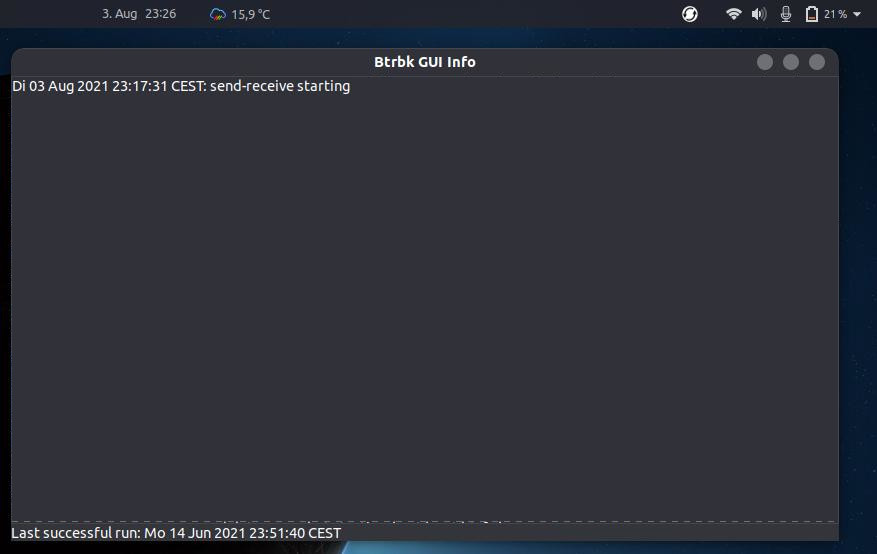
An optional window shows the date and time of the last successful backup and the log file of btrbk. It is written for Gnome using GTK and I’ve tested it on Ubuntu 20.04.
Motivation
My intention for writing this small tool is my experience with Time Machine for macOS. Btrfs and btrbk are great for backups but I missed a simple icon giving me some feedback about the state. I’m not sure if I will extend this tool in future with a lot of other features as this is more or less all I want.
Furthermore, I prefer old-school autotools and C++ so I use this for this tool.
Compile and Install
First install everything we need for compilation:
sudo apt install automake autoconf g++ make libgtkmm-3.0-dev libappindicator3-dev
Now generate files and compile:
aclocal && autoconf && automake --add-missing --foreign && ./configure && make
For debugging you may want to use ./configure 'CXXFLAGS=-O0 -g'.
Now install with:
sudo make install
Note that the executable will not work without installation as it searches for icons etc. in the installation destination.
Usage
A log file written by btrbk is required so that this tool can read it. I assume the log file is /var/log/btrbk.log. Probably your btrbk must be configured to write this log here. You may give another path as a parameter like btrbk-gui /var/log/other-btrbk.log.
Actions Menu
This menu allows you to run the corresponding btrbk actions. By default btrbk-gui assume pkexec and btrbk are in your $PATH and that you have install gnome-terminal. Actually, btrbkgui executes the script /usr/local/share/btrbkgui/execute_btrbk.sh (note the path depends on your installation dir). The default script is:
#!/bin/sh

case "$1" in
    run)
        gnome-terminal -- sh -c 'cd /tmp ; pkexec btrbk run; bash'
    ;;
    resume)
        gnome-terminal -- sh -c 'cd /tmp ; pkexec btrbk resume; bash'
    ;;
    clean)
        gnome-terminal -- sh -c 'cd /tmp ; pkexec btrbk clean; bash'
    ;;
    kill)
        gnome-terminal -- sh -c 'cd /tmp ; pkexec kill $2; bash'
    ;;
esac
So, you may want to edit this file to match your system. Besides different executables (e.g. for the terminal) you may have, for example, an encrypted file system as your backup device and this must be (un)mounted before and after your backup. Your script could be changed accordingly:
#!/bin/sh

export PID=$2

case "$1" in
    run)
        gnome-terminal -- sh -c ' \
            cd /tmp; \
            pkexec sh -c " \
            	sh mount.sh; \
                btrbk run; \
                sh unmount.sh"; \
            bash'
    ;;
    resume)
        gnome-terminal -- sh -c ' \
            cd /tmp; \
            pkexec sh -c " \
            	sh mount.sh; \
                btrbk resume; \
                sh unmount.sh"; \
            bash'
    ;;
    clean)
        gnome-terminal -- sh -c ' \
            cd /tmp; \
            pkexec sh -c " \
                sh mount.sh; \
                btrbk clean; \
                sh unmount.sh"; \
            bash'
    ;;

    kill)
        gnome-terminal -- sh -c 'cd /tmp ; pkexec kill $PID ; bash'
    ;;
esac